
Node Dashboard
The Node Dashboard provides detailed metrics for individual ClickHouse nodes, giving you deep insights into node-specific performance and health.
Overview
The Node Dashboard is a pre-configured monitoring view that requires no setup. It automatically:
- Aggregates Metrics: Collects data from ClickHouse system tables
- Visualizes Performance: Displays metrics as charts, gauges, and tables
- Provides Drill-downs: Click on metrics to see detailed breakdowns
- Updates in Real-time: Refreshes automatically or manually to see latest data
Opening the Node Dashboard
- Select a Node: Click the host name node in schema tree or the 'Node Status' from the dashboard icon on the sidebar
- View Dashboard: The node dashboard displays automatically
Dashboard Overview
The dashboard shows key node health indicators:
- Server Version
- Server Uptime
- Warning
- Errors
- Queries
- Merge
- Mutations
- Replication Status
- Key Metrics
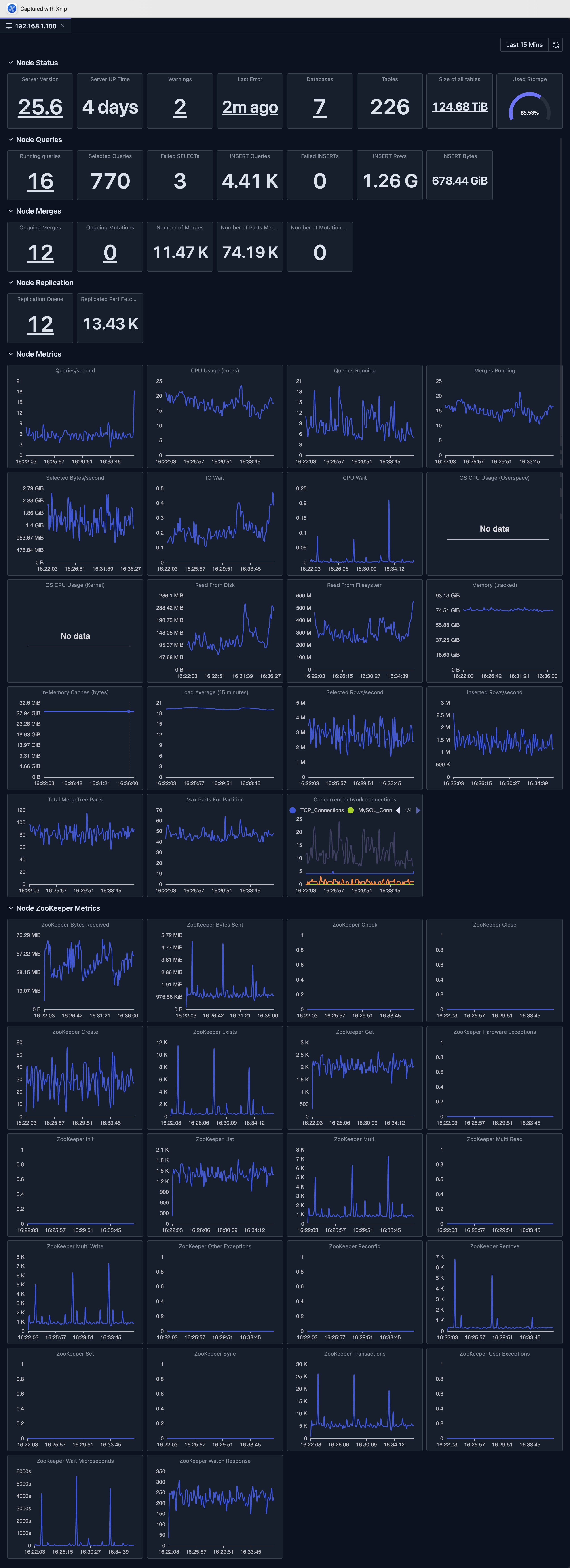
Dashboard Features
Time Range Selection
The dashboard supports flexible time range selection:
- Predefined Ranges: Last 15 minutes, Last hour, Today, Last 7 Days, etc.
- Custom Range: Select specific start and end times
- Auto-refresh: Automatically refresh data at intervals (where supported)
Chart Types
The dashboard uses various visualization types:
- Stat Cards: Single-value metrics with drill-downs
- Line Charts: Time-series data with multiple series
- Bar Charts: Distribution and comparison data
- Gauges: Percentage and threshold indicators
- Tables: Detailed data with sorting and pagination
Drill-downs
Many dashboard support drill-down functionality.
For example, for the 'Total Data Size' Stat panel, when clicking this panel, it opens a dialog to show details of data size, which is per server data size so that we know the distribution of original total size metric.
Refresh and Auto-refresh
- Manual Refresh: Click the refresh button to update data
- Auto-refresh: Enable automatic updates (where supported)
Limitations
- System Table Access: Requires read access to ClickHouse system tables
- Data Retention: Metrics depend on ClickHouse's system tables retention settings
- Availability: Requires your ClickHouse node to be available
- Version Compatibility: Some metrics may not be available in older ClickHouse versions
- Performance Impact: Querying large time ranges may be slow and consumes resources of your ClickHouse cluster
Deep dive: Explore System Log Introspection for detailed analysis of system tables.
Next Steps
- Cluster Dashboard — View cluster-wide metrics across all nodes
- Query Log Inspector — Analyze specific query performance
- Schema Explorer — Explore your database structure
- System Log Introspection — Deep dive into query and part logs